Create your own report template in Perci
Use your own Word document to create reports with your organisation's headings, layout and logo. Prepare the template once, upload it to Perci, then select it whenever you generate a report.
Before you start
Step 1: Prepare your Word template
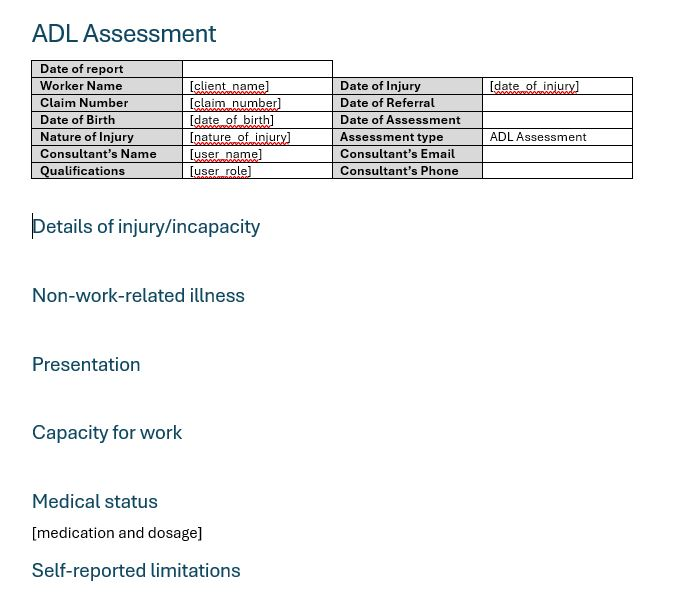
Start with a Word (.docx) document . Perci uses the template to structure the generated report while retaining the text and formatting you provide.
Two important formatting rules
- Round brackets ( ) contain instructions for Perci, called hints . These instructions do not appear in the finished report. For example: (bullet points: claim-related medical information provided and accepted compensable conditions) .
- Other text remains in the report as written. Use square brackets [ ] for blanks Perci should fill, such as Dr [treating doctor name] certifies [Worker] .
What to include
- Headings: Use a Word Heading style or bold text for each section. Add a hint underneath when you need to specify what belongs in the section.
- Tables: Insert a table into Word and put a heading immediately above it. Add hints to cells if you need to specify the information or formatting, such as (one row per medication) .
Steps 2–3: Upload your template
Choose your platform to see how to add the Word document to Perci.
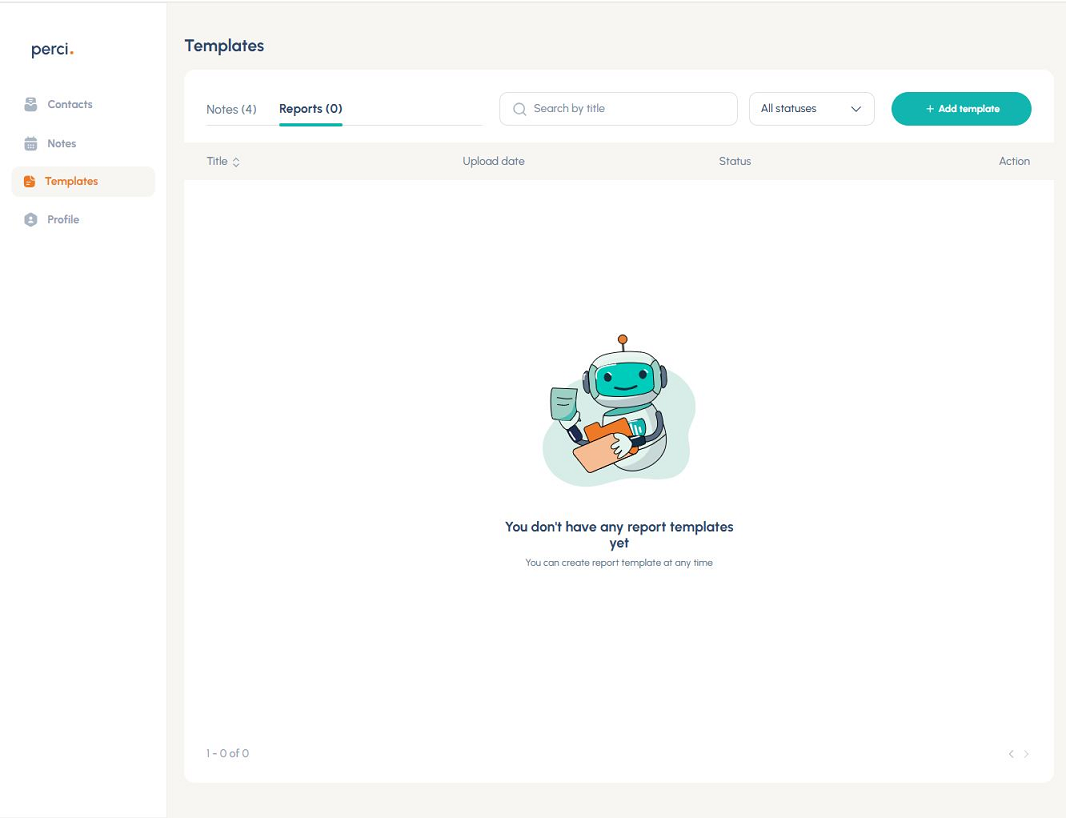
Open report templates
Go to Profile → Settings → Formatting, then select + Add template.
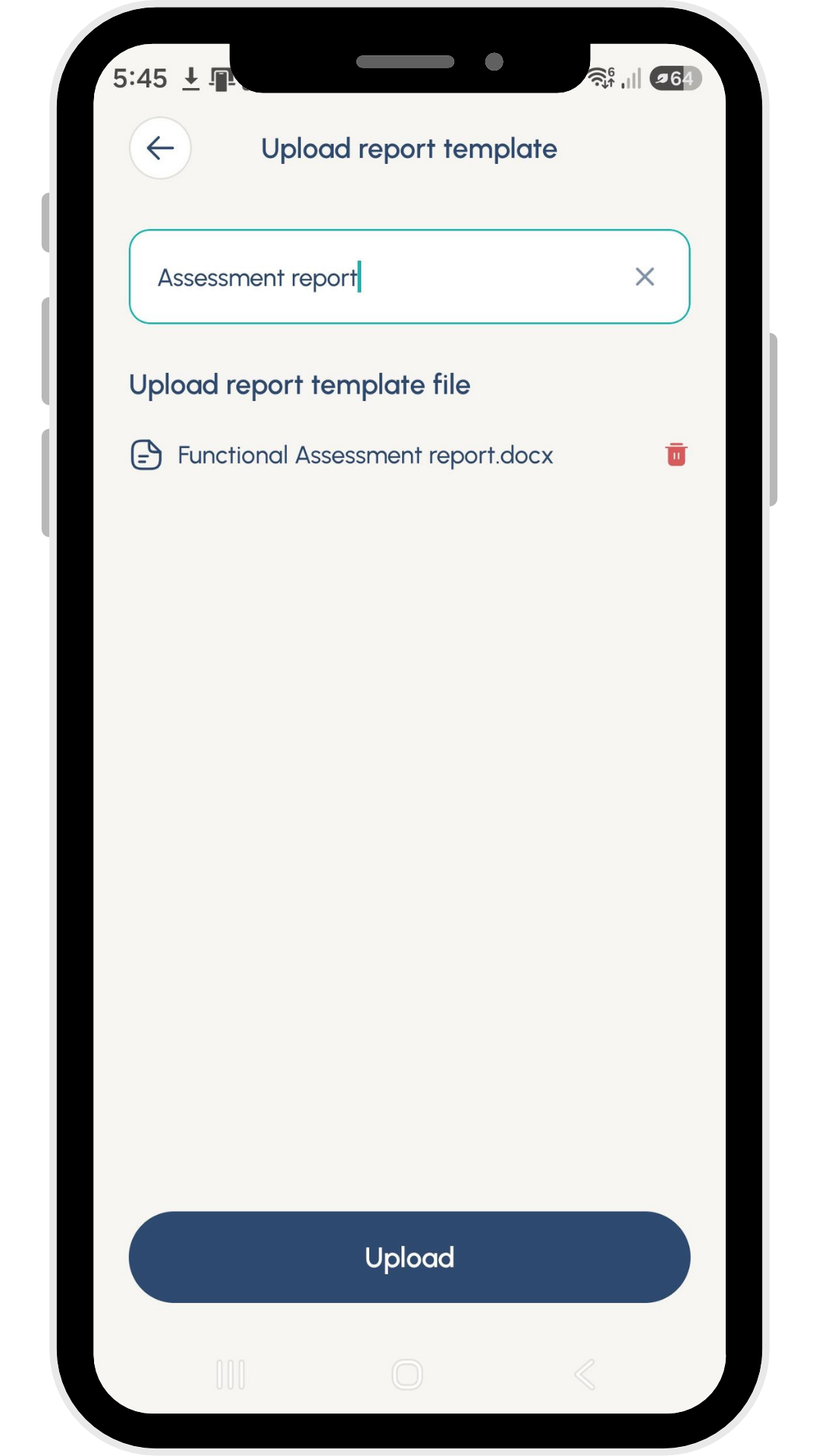
Upload and save
- Enter a title for your template.
- Upload your Word .docx file.
- Select Save template .
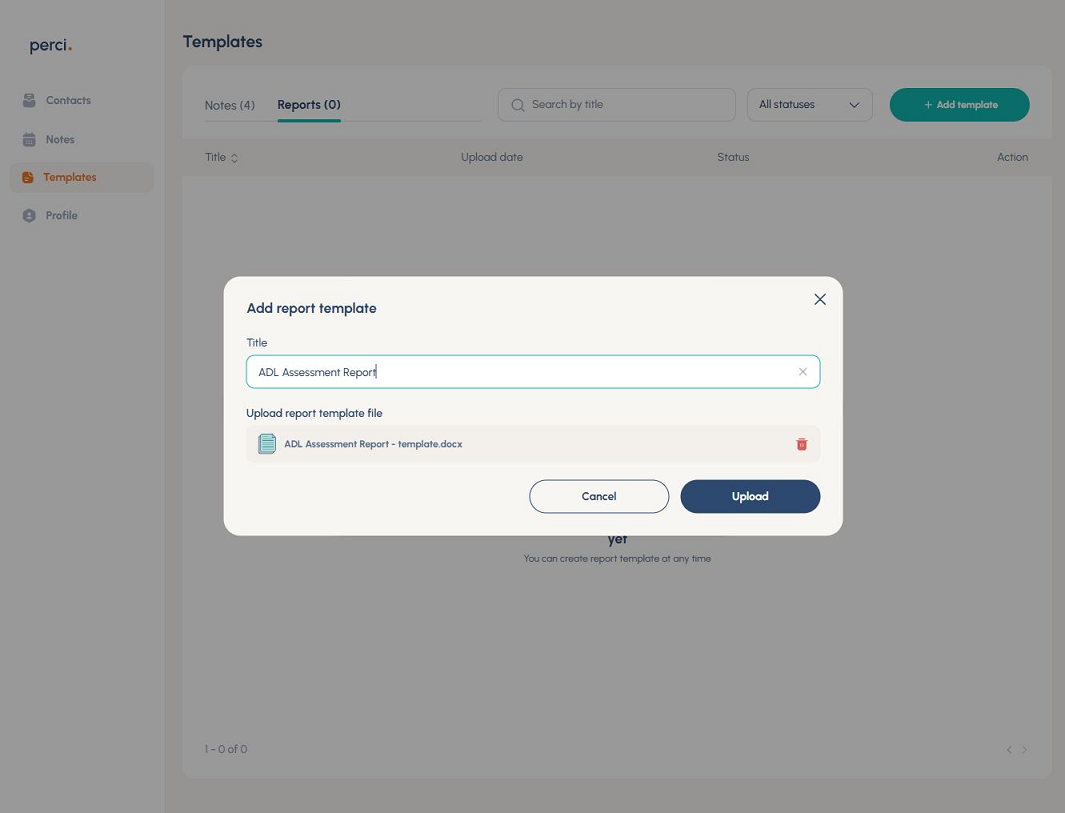
Open report templates
Go to Profile → Settings → Report Templates, then select + Add template.
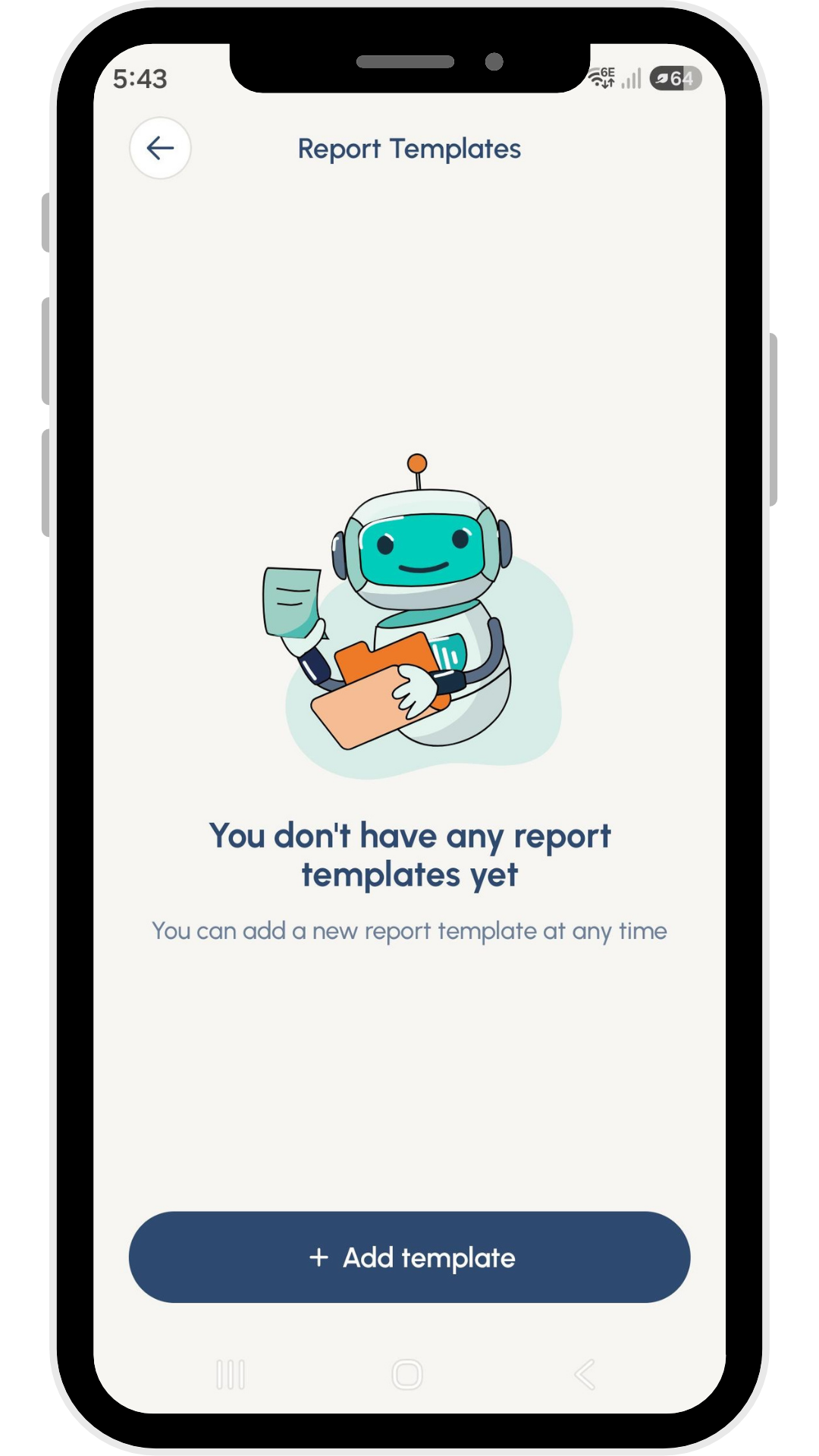
Add your template
Upload your prepared Word document using the add-template option, then save your template.