Record your first session
Once you have installed Perci, you are ready to record your first session.
- Open the Perci app and log in.
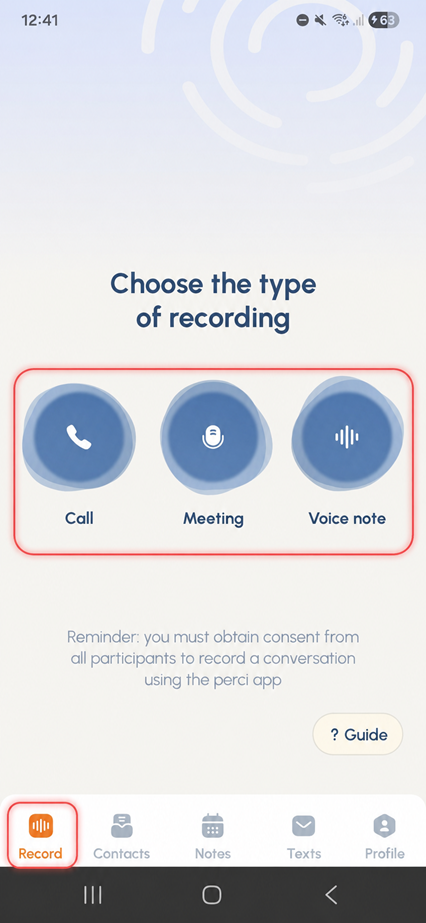
- Tap Record in the bottom navigation bar. This is the icon on the far left.
- Select the type of recording you want to make: Meeting, Call or Voice note.
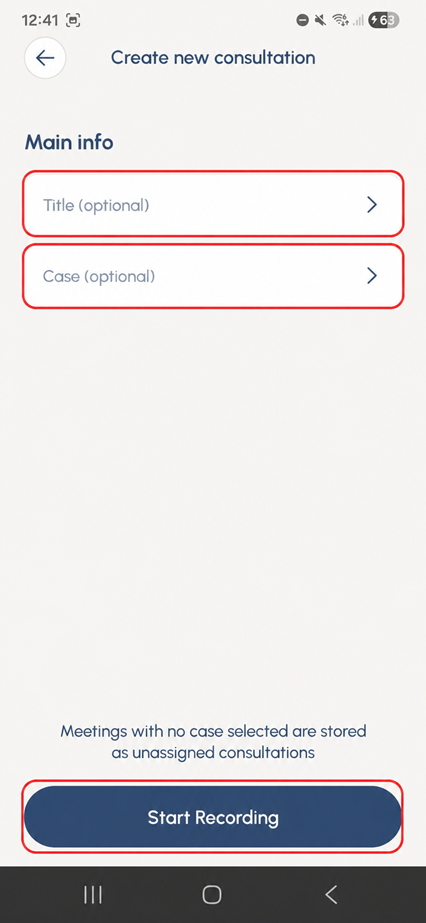
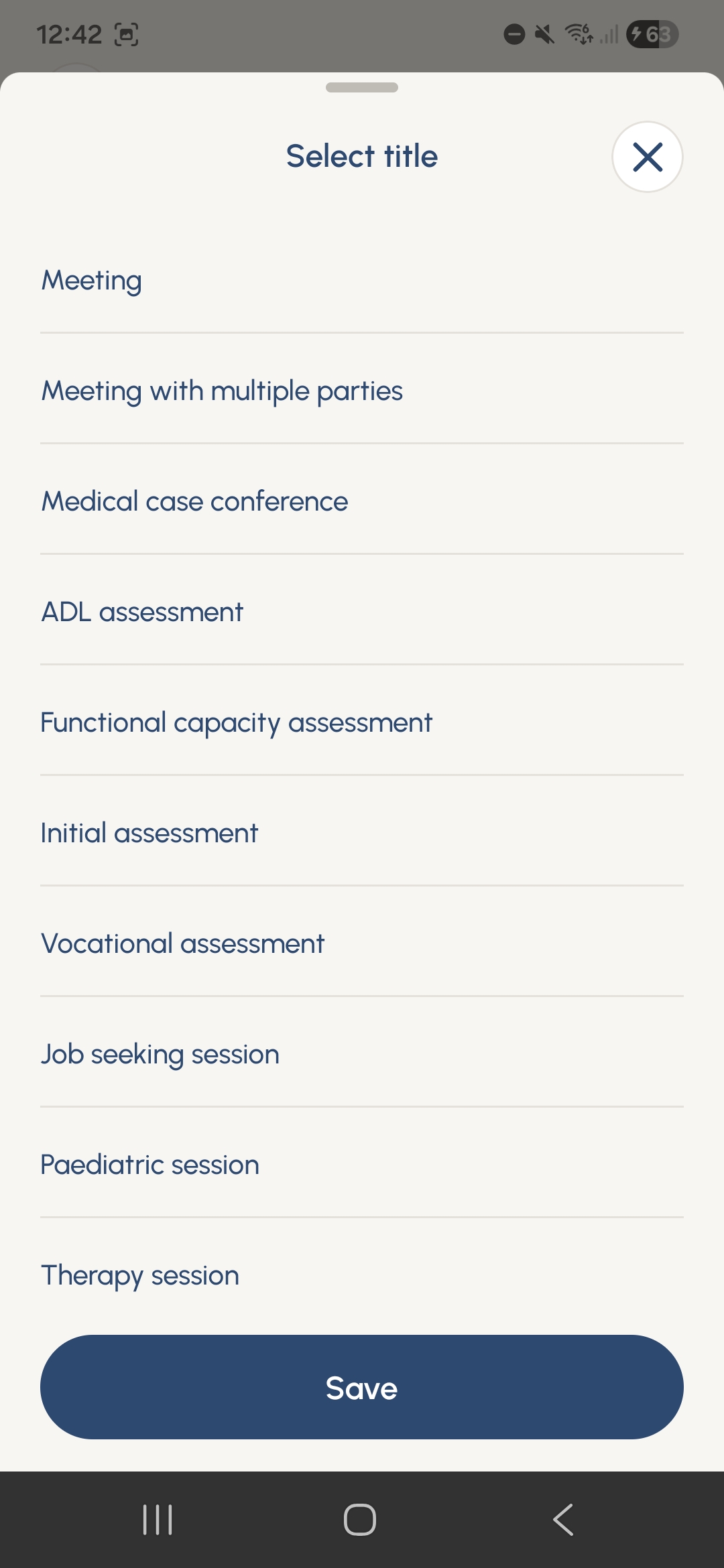
- For a Meeting or Voice note, choose the most relevant session title from the list. If the right option is not available, scroll to the bottom, select Other and enter your own title.
- If you have already created a relevant case in Perci, select the case for this session.
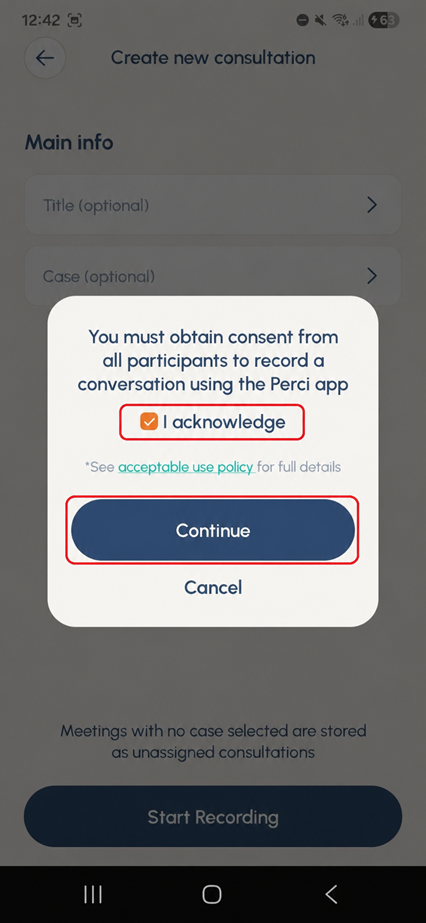
- Before recording begins, make sure you have obtained consent from everyone involved and confirm this on screen when prompted. You can see scripts for how to ask for consent on our resource page.
- Perci will then begin recording automatically.
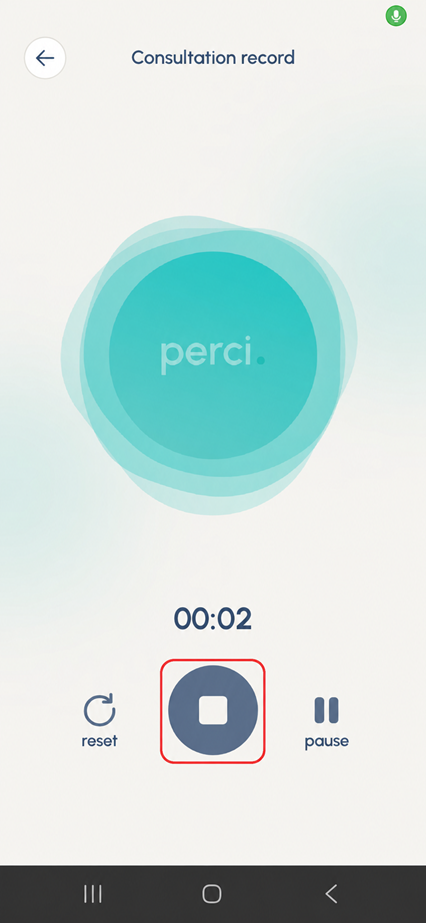
- When the session is finished, tap Stop. You can also pause and reset the recording if needed during the session.
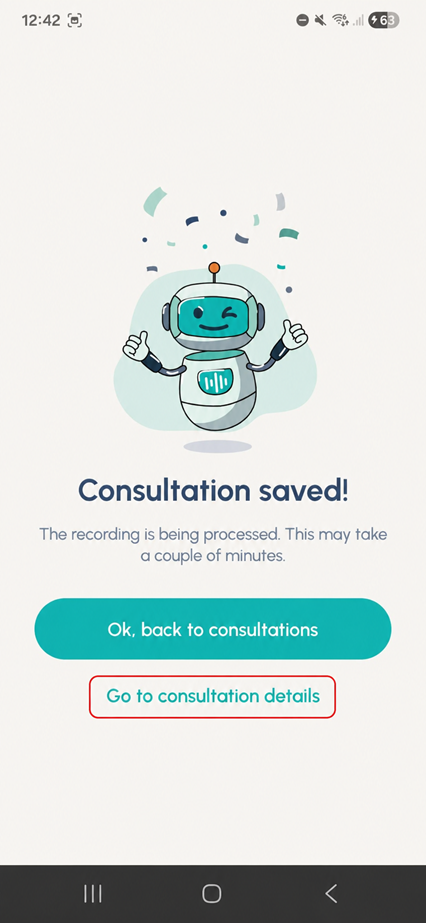
- Your consultation will be saved in the app, and you can go to Consultation details to view the generated summary.