Setting up two-factor authentication
Two-factor authentication, also known as 2FA, adds an extra layer of security to your Perci account. After you enter your password, Perci may ask you for a verification code from an authenticator app before you can sign in.
On this page
What 2FA does
Adds a second sign-in step so your account is better protected, even if someone knows your password.
What you need
Your Perci login details, access to your phone and an authenticator app such as Microsoft Authenticator or Google Authenticator.
How codes work
Authenticator codes are time-sensitive, so use the latest code shown in your app when Perci asks you to verify.
Set up two-factor authentication in the Perci app
- Open the Perci app.
- Go to Profile.
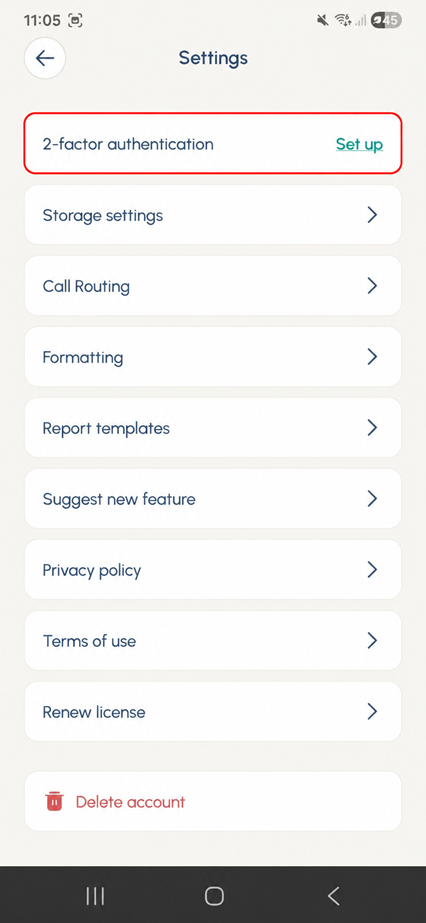
- Select Settings.
- At the top of the screen, find 2-factor authentication and tap Set up.
- You will then see the two-factor authentication setup screen.
If you do not already have an authenticator app, download one on your phone, such as Microsoft Authenticator or Google Authenticator. Then use the details shown in Perci to connect your authenticator app.
You can usually do this in one of two ways:
- tap the setup link in Perci to configure the authenticator app automatically; or
- manually copy the setup key from Perci into your authenticator app.
Once your authenticator app is connected, it will generate a verification code. Enter that code into Perci, then tap Turn on 2FA to complete setup.
Set up two-factor authentication in the web app
If you are using the Perci web app, you can also set up two-factor authentication from your browser.
- Go to Profile.
- Open Settings.
- Select 2-factor authentication.
- Follow the setup steps shown on screen.
Using a QR code
In the web app, you may have the option to display a QR code. You can scan this QR code with your authenticator app to set up 2FA faster, instead of entering the setup key manually.
Once two-factor authentication is enabled, Perci will ask for a verification code from your authenticator app when needed during sign-in.
Using your authenticator code when signing in
After entering your password, Perci may ask for a time-sensitive verification code. This code will usually be found in the authenticator app you used when setting up two-factor authentication.
On Android
- Open Perci and log in as usual.
- When prompted for your verification code, leave Perci open.
- Open your authenticator app.
- Select the relevant Perci account.
- Copy or note the current code shown in the app.
- Return to Perci and enter the code when prompted.
On iPhone
- Open Perci and log in as usual.
- When prompted for your verification code, leave Perci open.
- Open your authenticator app and find the code for your Perci account.
- Return to Perci and enter the code when prompted.
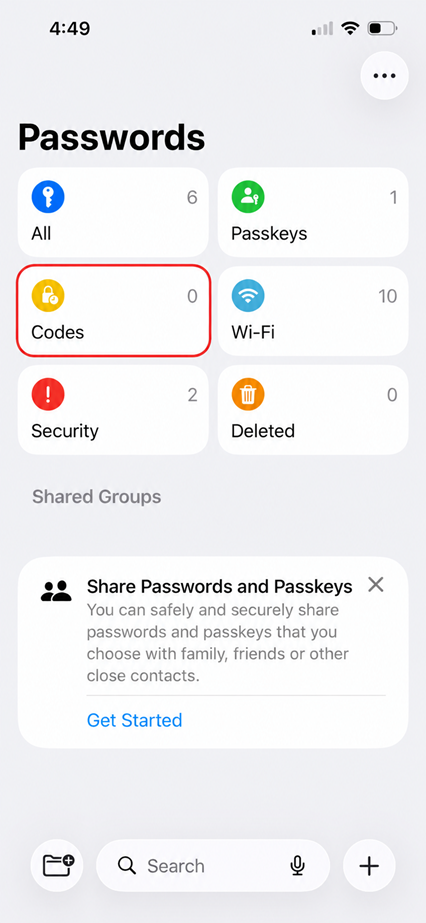
In some cases on iPhone, the code may appear in the Passwords app instead. Open Passwords, find the relevant saved account or one-time code entry under Codes, then copy or note the verification code and enter it in Perci.
If your code is not working
If Perci does not accept your verification code, try the steps below before requesting help.
- Check that you are using the latest code shown on your phone.
- Wait for a new code to appear and try again.
- Make sure you are selecting the correct Perci account in your authenticator app or Passwords.
- Ensure Perci is updated to the latest release by checking the App Store or Google Play.
- If you are still having trouble, contact our support team.
Why this matters
Two-factor authentication helps protect your account even if someone else gets access to your password. It is a simple extra step that makes your information more secure.
Need help?
If you are still having trouble setting up or using two-factor authentication, please contact our support team.