Choose your preferred notes format
Perci allows you to choose how your notes are structured, so you can use the format that works best for your workflow.
Change the format for a single session
After recording a phone call or meeting:
- Open the session summary.
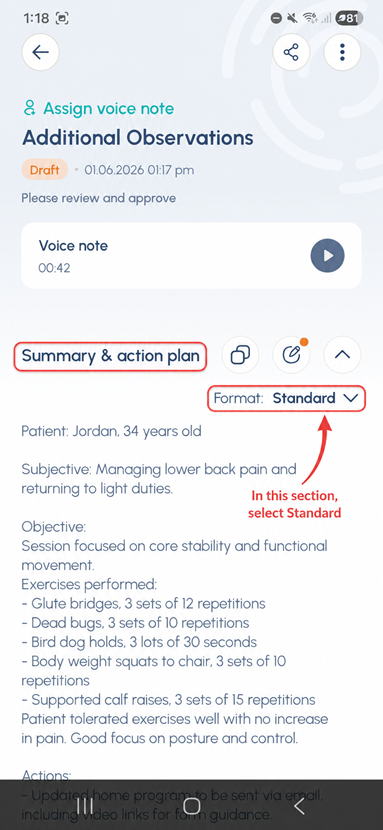
- Under Summary & action plan, find the Format option.
- By default, this is set to Standard.
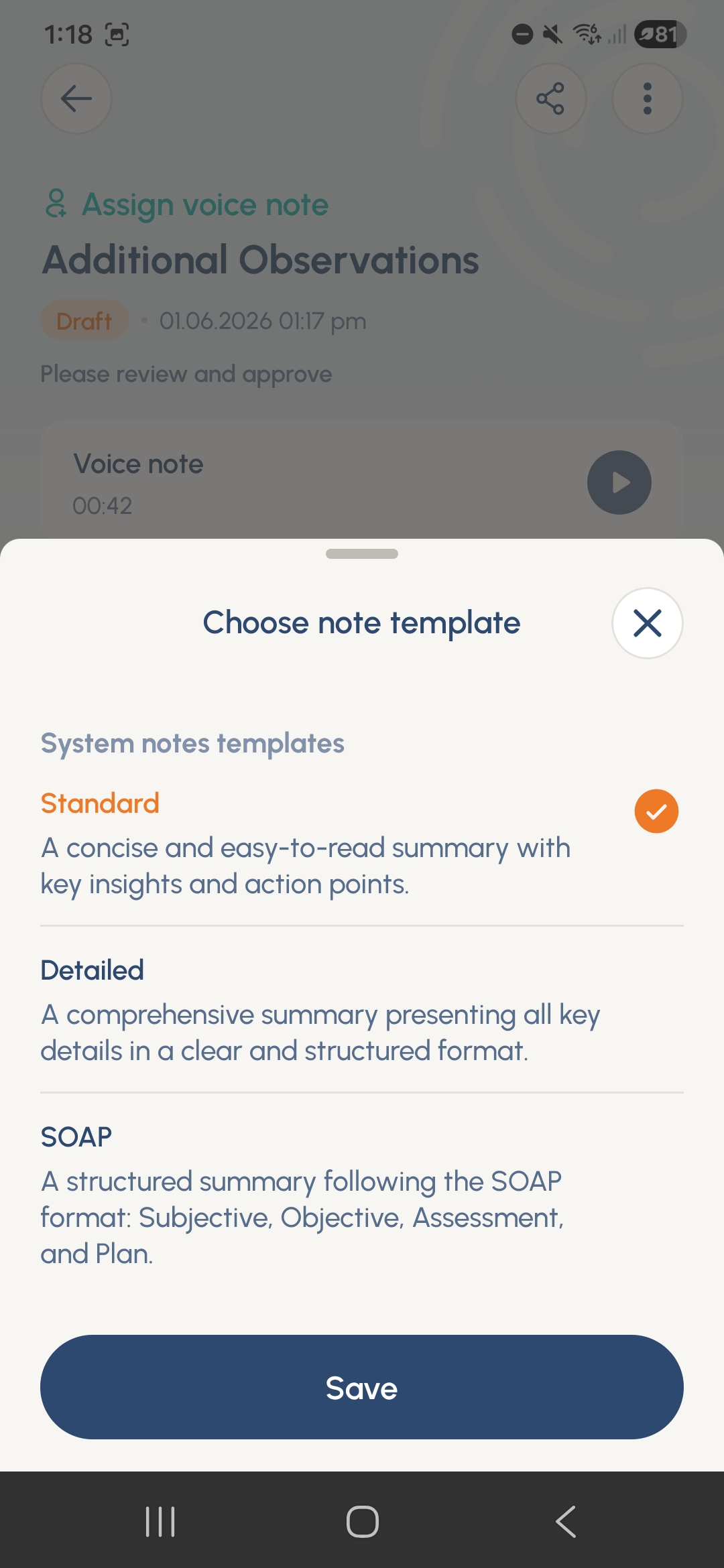
- Tap Standard to view the available note formats.
- Review the brief description for each format and select the one you want to use.
- Tap Save to apply the new format to that session’s notes.
Change your default notes format
If you would like Perci to use the same notes format automatically for future sessions:
- Open the Profile menu in the Perci app, located on the bottom right of the screen when opening the app.
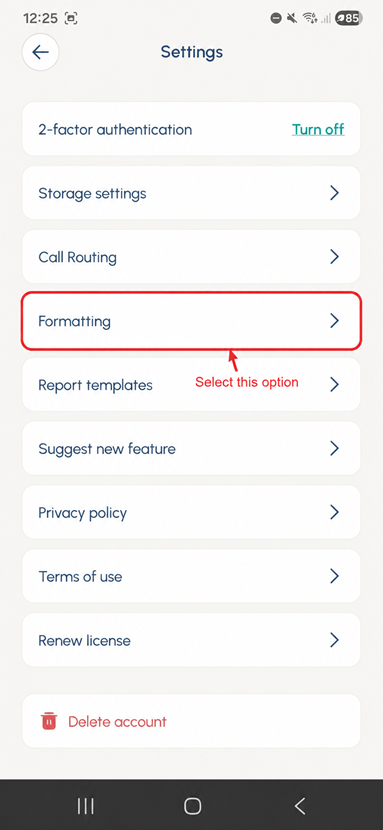
- Go to Settings.
- Select Formatting.
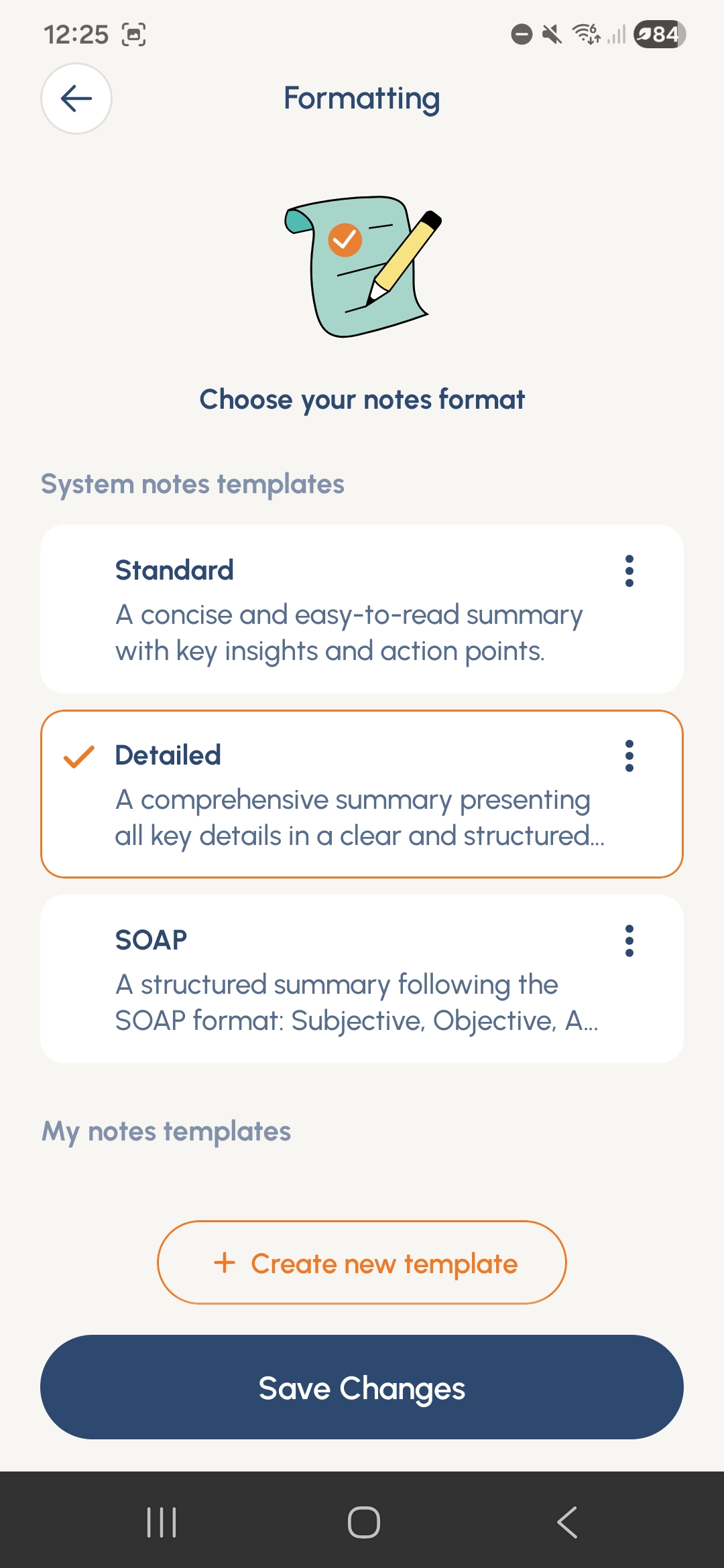
- Choose your preferred default notes format.
- Tap Save Changes.
This will set your preferred format as the default for future notes.
To add your own custom notes format, go to the custom note templates page.
For more support, please contact our support team.