Start using Perci for phone calls
Perci can take notes during both outgoing and incoming phone calls, helping you capture key information, agreed actions and follow-up points without needing to write everything down manually. To get started:
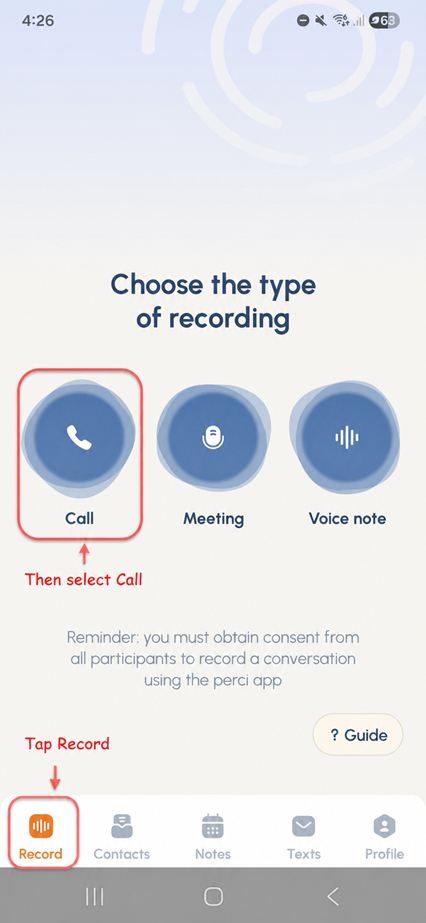
- Open the Perci app and in the bottom left of the screen tap Record.
- Select Call.
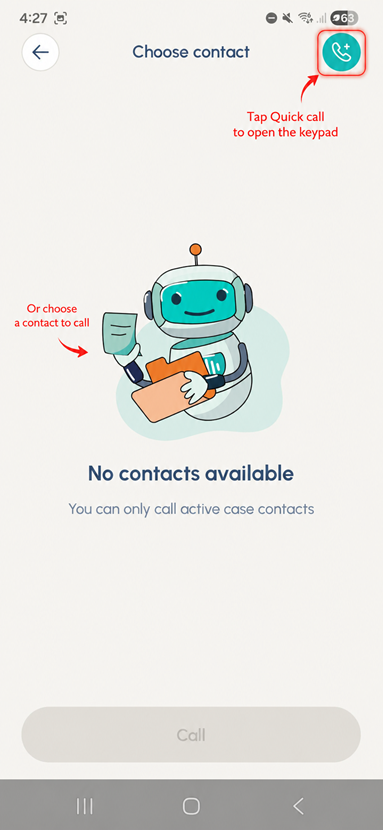
- Choose a contact to call or tap the quick call button in the top right to open the keypad and dial manually.
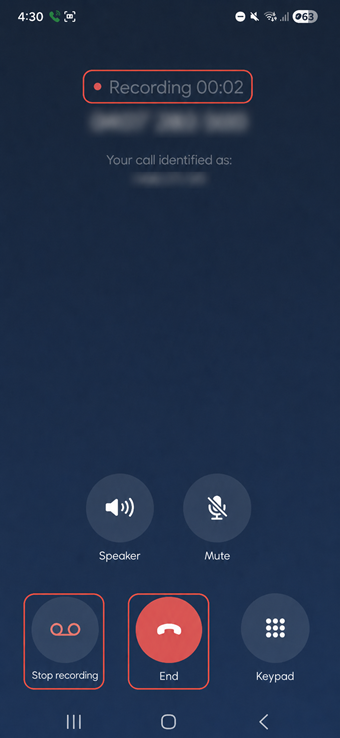
- Perci will place the call and begin recording in the background.
- At the start of the call, make sure you obtain consent from the other person to record the conversation.
- If consent is not given, tap Stop Recording. You can still continue the call as normal, but Perci will not take notes for that conversation.
- If consent is given, continue the call as usual.
- When the call is finished, simply end the call.
- Perci will automatically create a draft note for you after the conversation.
Incoming calls and your Perci number
You can also use Perci for incoming calls.
- You can share your Perci number so clients can call you directly and Perci can take notes during the conversation.
- If you would prefer to use your own number with Perci, go to Profile, Settings, then Call Routing, and follow the setup instructions provided in the app.
For more information about call routing, visit the Call routing in Perci resource.