Using Contacts and Cases in Perci
If you work with the same clients regularly, Perci’s Cases and Contacts features help you keep client information, notes and important people organised in one place. A case acts as the client record, while contacts can be linked to that case, such as next of kin, a GP, a treating professional or another support person.
On this page
Cases
Use cases as client records that hold relevant details, notes and linked contacts.
Contacts
Add family members, GPs, treating providers and other support contacts to the relevant case.
Notes
Keep consultation notes grouped in chronological order so client history is easy to review.
What is a case?
In Perci, a case is the record for a client. It can hold key information about that client, including their notes, history and contact details. You can also link multiple contacts to the same case, so the people involved in the client’s care are easy to find when you need them.
For example, you might link:
- a next of kin or family contact
- a GP or medical specialist
- a physiotherapist, occupational therapist or psychologist
- any other relevant contact involved in treatment, care or support
When you open a case, you can view linked contacts, client details and previous notes together in one place.
Why use Cases and Contacts?
Keeping information connected to the client record helps reduce admin and makes it easier to find what you need before, during or after a session. Instead of searching through separate places, you can use the case as the central record for that client.
Cases and Contacts can help you:
- see your full history with a client in chronological order
- access linked contacts without searching elsewhere
- keep notes, client details and care-related contacts together
- quickly find the right person to contact when following up
Helpful tip
If you regularly work with the same client, creating a case first can make future sessions easier to organise as notes and contacts can be connected to that record.
How to create a new case
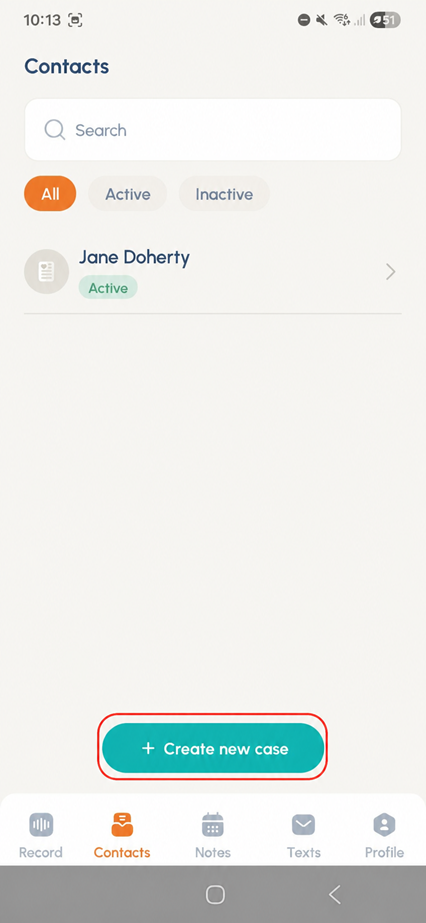
- Open Perci and select Contacts from the navigation bar.
- Select Create new case.
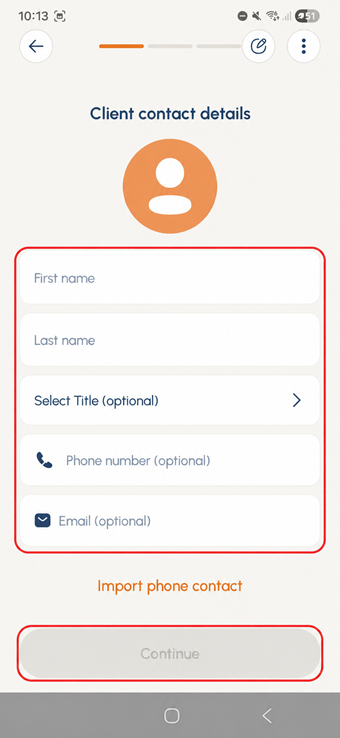
- Add the client’s details as needed.
- Select Save Case to create the record.
Some fields are optional, so you only need to complete the information that is relevant to your workflow.
How to add contacts to a case
Once you have created a case, you can add contacts linked to that client.
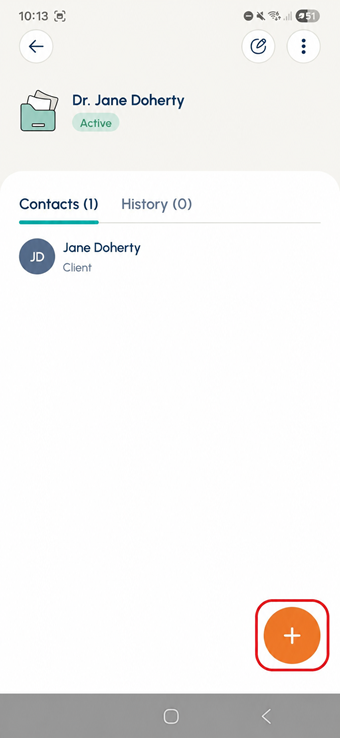
- Open the relevant case in Contacts.
- Select the plus icon.
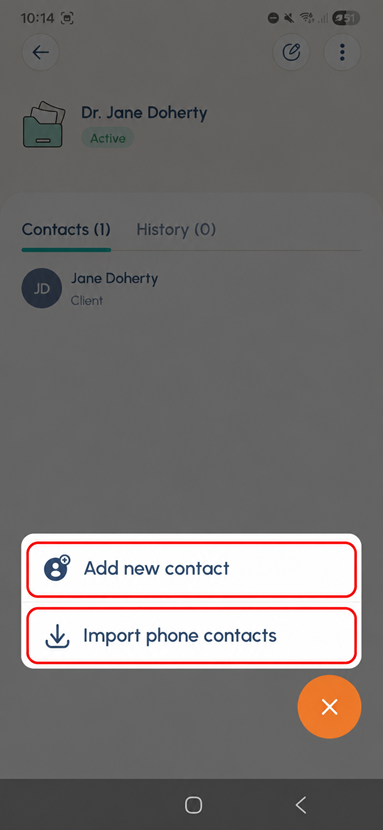
- Select Add new contact to manually add a new contact.
- Alternatively, select the option to import a contact from your phone using Import phone contacts.
- Save the contact so it is linked to the case.
This is useful for adding people such as family members, GPs, treating providers or other professionals involved in the client’s care.
Bulk import contacts and cases
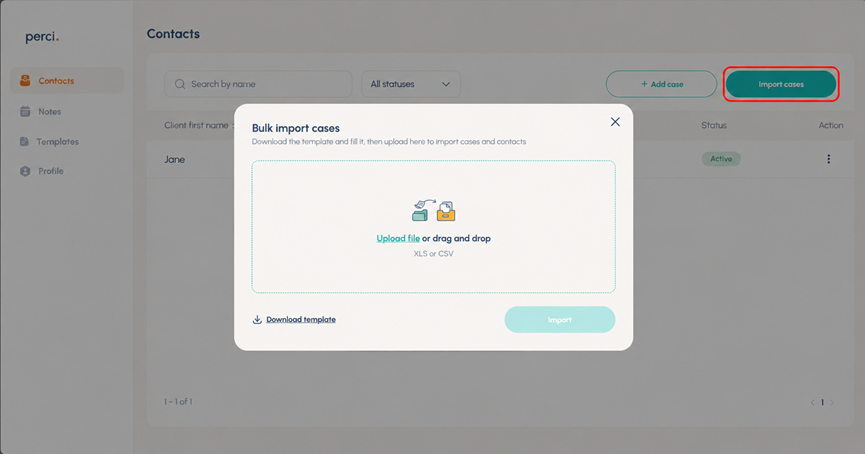
Use bulk import on the web version
If you need to add a larger set of contacts, Perci’s web version includes a bulk import option. This can save time when setting up records for several clients, support people or care-related contacts at once. Select Contacts, then Import cases. Then you can download the template, fill it in and upload the document to complete the bulk import.
View notes and client history
Any notes you add to a case are grouped together in chronological order. This makes it easier to scroll back through your history with a client and quickly understand what has happened over time.
Keeping things simple
Cases and Contacts are designed to keep client information tidy, connected and easy to access. By linking notes, contact details and care-related contacts in one place, Perci helps reduce admin and makes day-to-day work easier.
For more support, visit the Perci Resources page or contact our support team.